Student Printing, Scanning, and Faxing

Student (and public) printers are available in the following Library locations:
- Goldfarb InfoCommons (Level 1)
- Goldfarb Classroom 230 (Mezzanine)
- Farber Classroom 1 (Level 1)
- Farber Level 1 (in front of Farber Classroom)
- Farber Mezzanine
Printing Costs
| Type | Price Per Sheet |
|---|---|
| Black and White, Single-sided | 10¢ |
| Black and White, Double-sided | 15¢ |
| Color, Single-sided | 30¢ |
| Color, Double-sided | 55¢ |
Brandeis WhoCash is the method of payment and can be purchased online, adding funds through the GET Mobile app, which can be downloaded for iPhone or Android devices, or by going to the Campus Card office (located in Epstein Building, room 101).
Using the Ricoh Devices
Please follow the steps below to enable printing and copying on Ricoh devices:
- Select the appropriate print queue.
- Associate your Brandeis ID card with a Ricoh Printer for papercut printing release.
Select the Appropriate Print Queue
The Ricoh student printer driver(s) for Windows devices are installed using a program downloaded by going to the following website, go.brandeis.edu/mobileprinting and for Mac devices they can be installed using the Printers & Scanners feature while the computer is connected to eduroam.
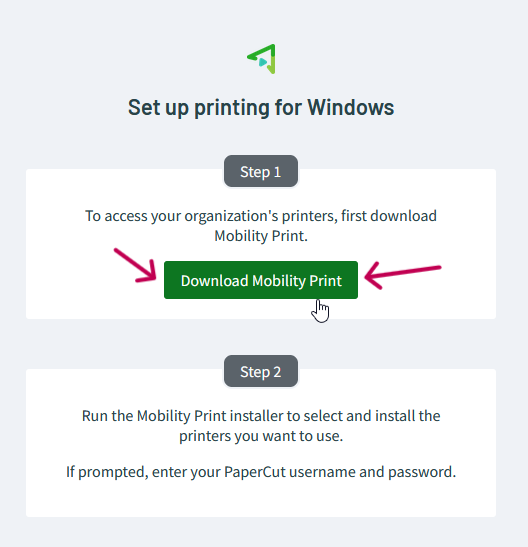 An installer will be downloaded. After the download is finished, double-click on the installer and press Yes on the prompt that comes up after double-clicking the installer.
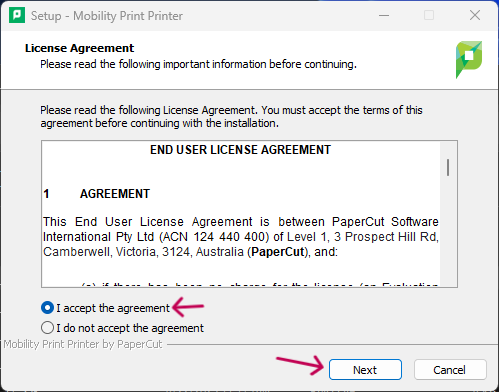
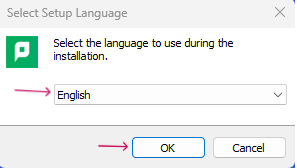 Click I Accept on the End User License Agreement (EULA) on the following screen. Then click Next.
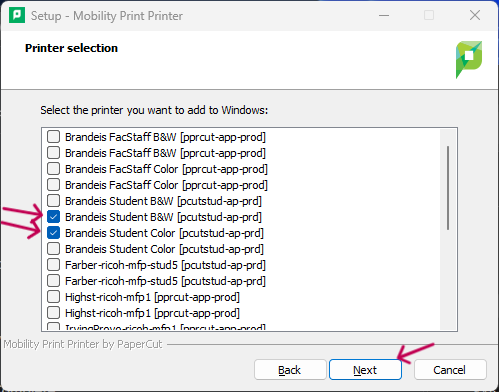
 Please wait one minute while the installer retrieves the printer list. After the printer list populates, check the checkboxes next to Brandeis Student B&W [pcutstud-ap-prd] and Brandeis Student Color [pcutstud-ap-prd].
 Enter your Brandeis username and password on the following screen to log into the network. Click Next for the printer drivers to be installed on your computer.
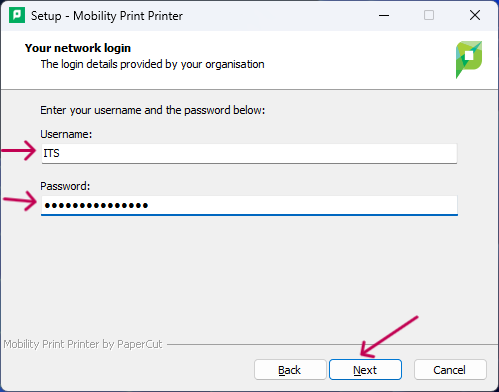 The names of the printer drivers on your computer will be Brandeis Student B&W and Brandeis Student Color.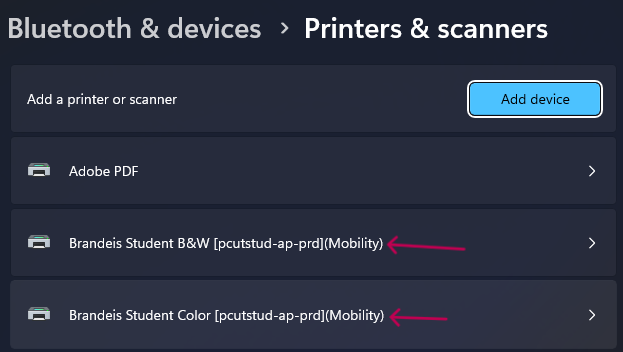
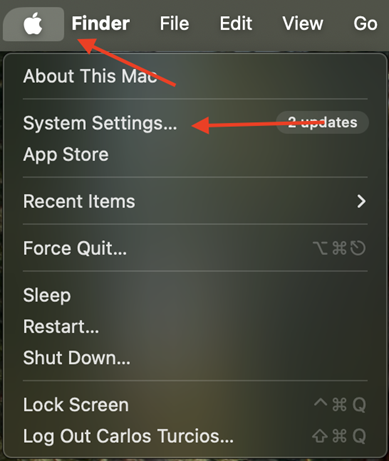 Search for Printers in the search bar and click on Printers & Scanners to be taken to the proper menu to install the printer drivers. In the new menu on the right-hand side of the screen, click the Add Printer, Scanner or Fax button.
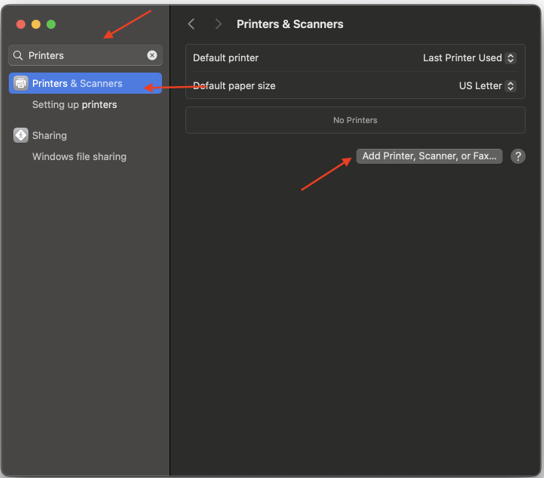 To install the printer driver from the list, click the printer you need and click add. (For black and white, select brandeis student b&w and ensure the location is pcutstud-ap-prd in the location field; for color, select brandeis student color and ensure the location is pcutstud-ap-prd in the location field.)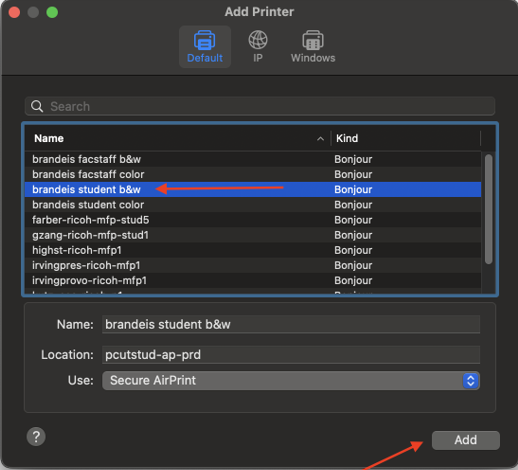

Associate Brandeis ID Card with Ricoh Machines
Card association is a simple process that involves swiping your Brandeis ID card and entering credentials stored for further use. Please follow the steps below to associate your Brandeis ID card with the papercut reader.
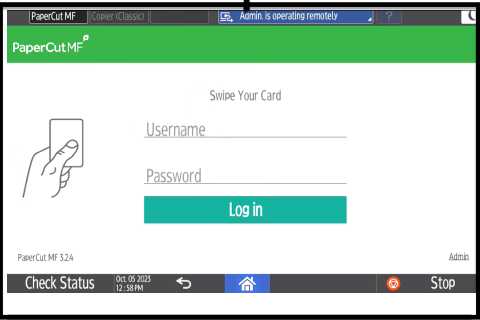
- Go to the Ricoh printer and locate the card reader. Swipe your Brandeis ID card. A screen asking for your username and password will populate.
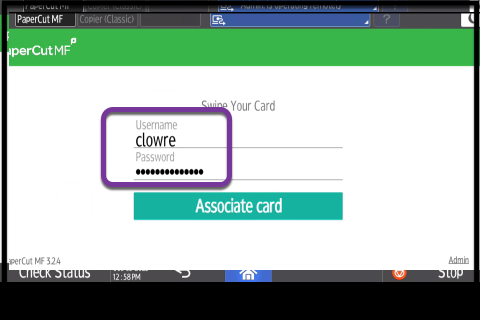
- Using the keypad, enter your Brandeis username and password. Do not include @brandeis.edu - this will prevent your ID from associating with the card reader.
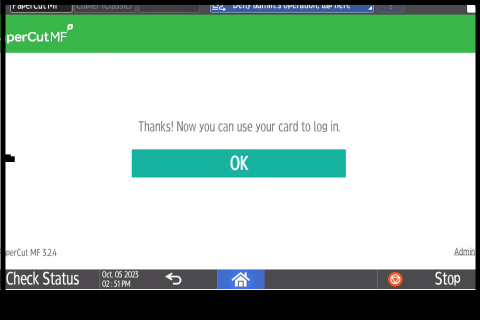
- Your card is now ready to use.
Printer Refunds
If the Ricoh Printer has taken your print job but did not print out your documents and charged your WhoCash, request a printer refund.
Scanning and Faxing
Free scanners are available in the InfoCommons on Level 1 of Goldfarb and on the Farber Mezzanine. The scanners can send documents via email, upload to cloud storage, or save to a USB driver. One of the scanners also has faxing capabilities. See the Library Information and Borrowing Desk for information.