Getting Started with Zoom
 ITS offers the Zoom Workplace platform to the Brandeis community to help you communicate and collaborate with colleagues and peers across campus or across the world. Zoom Workplace includes Zoom Meetings, Zoom Phone, and other Zoom productivity and communication tools.
The Zoom Workplace Platform can be managed from your Brandeis Zoom account and the Zoom Workplace app on your desktop or laptop computer. The Zoom Workplace App is installed on all Brandeis imaged desktops or laptops.
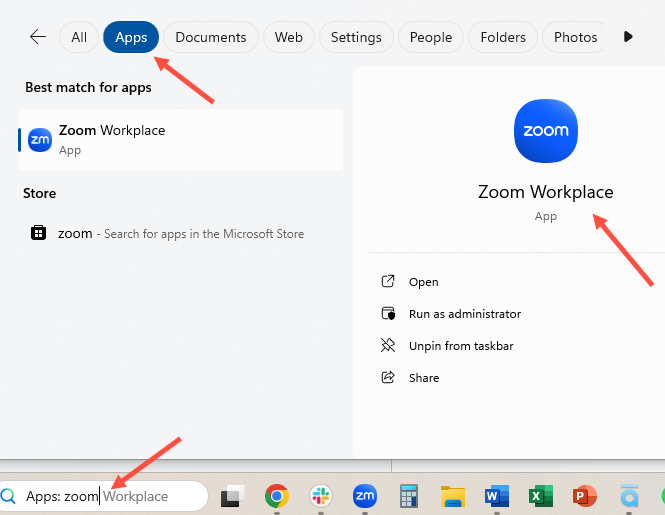
To find your Zoom Workplace app on Windows machines, type "Zoom" into your Windows search bar, select the "Apps" button, and choose Zoom Workplace.
To find your Zoom Workplace app on an iOS machine, type "Zoom" into your search bar and select the Zoom app.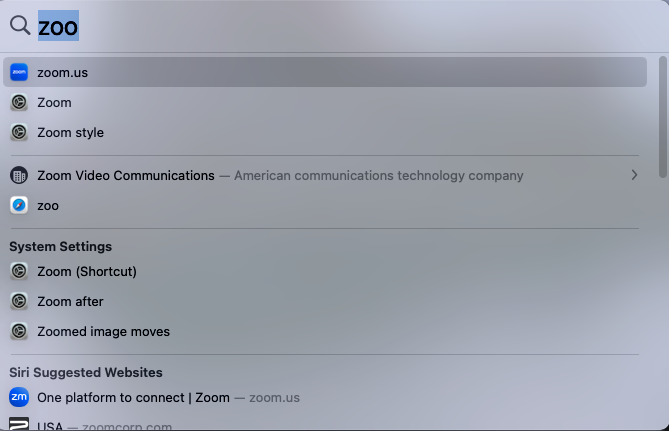
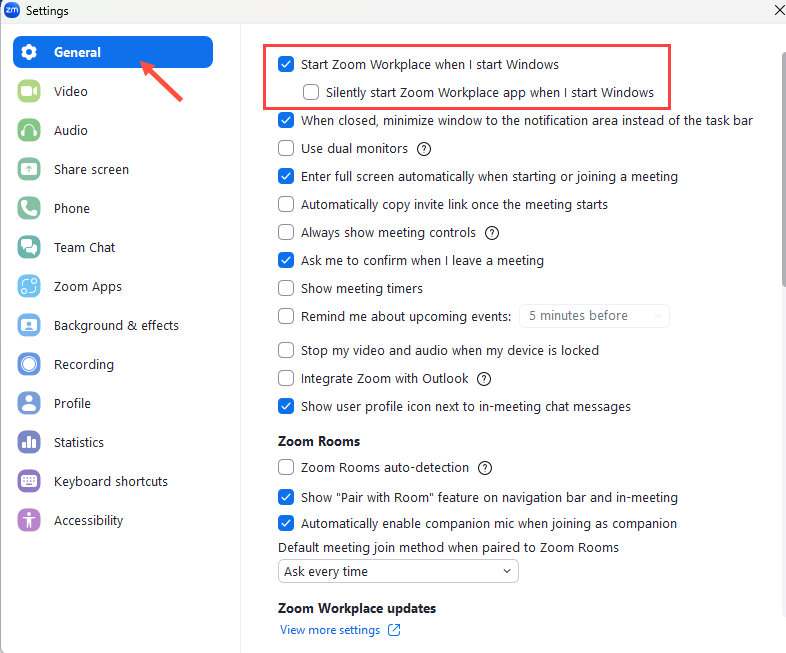
We recommend having Zoom Workplace open automatically any time you start or restart your computer for the best experience.
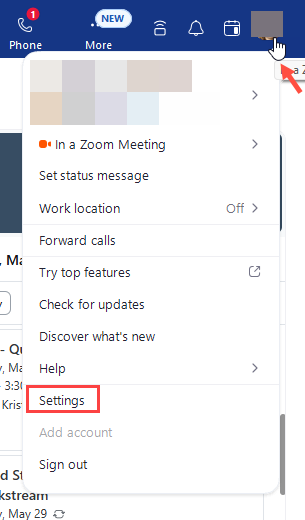
In Windows Machines, go to Setting in the Zoom Workplace app and click the box next to "Start Zoom Workplace when I start Windows".
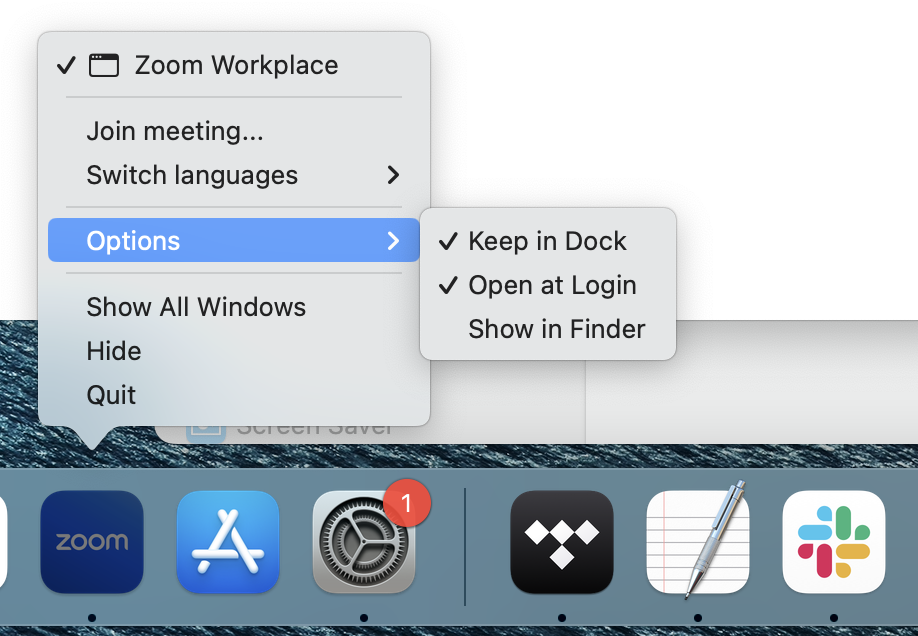
On iOS machines, open Zoom and locate its icon on the Dock. Right-click (or control-click) on the Zoom icon. Select "Options" from the context menu and choose "Open at Login." Once you have completed this step, Zoom Workplace will display in the list of Preferences > General > Login Items.