VoiceThread Student Guide
What is VoiceThread?
VoiceThread is a collaborative online tool that integrates visual media, text, video, and voice into a presentation. You can pre-record your narration of images, documents, videos and power point slides into one thread for students. You can enable video, audio or text comments for asynchronous discussion with your class.
How to Complete a VoiceThread Assignment
Sometimes instructors may create an assignment that requires you to upload your own VoiceThread, comment, or even both. For the example below, the student is being asked to add a comment and a picture to the existing VoiceThread.
- Login to Moodle and access your course page.
- Click on the VoiceThread link inside the course you are submitting the assignment for.

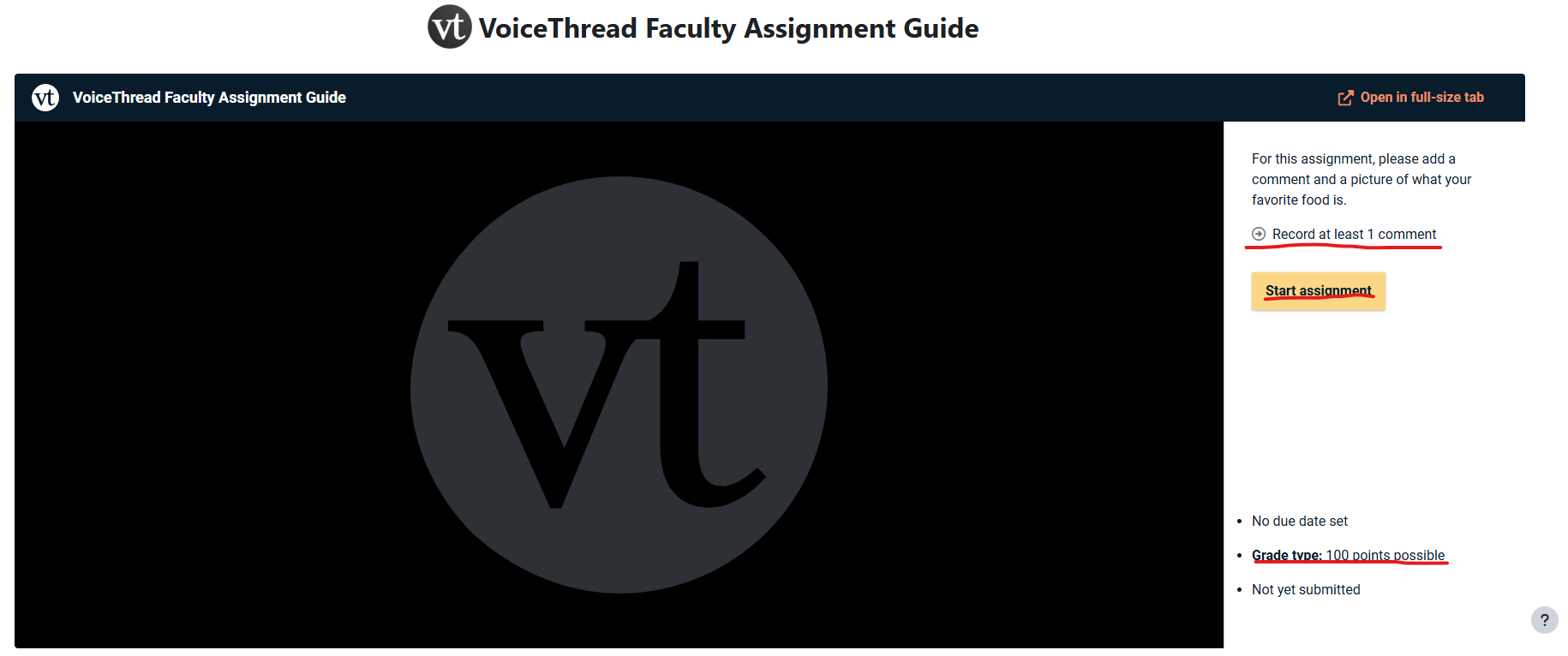
- When you open the assignment, you should see the assignment information on the right hand side, the due date, the grade percentage and if you have submitted the assignment yet. Click the Start Assignment button to begin the assignment.
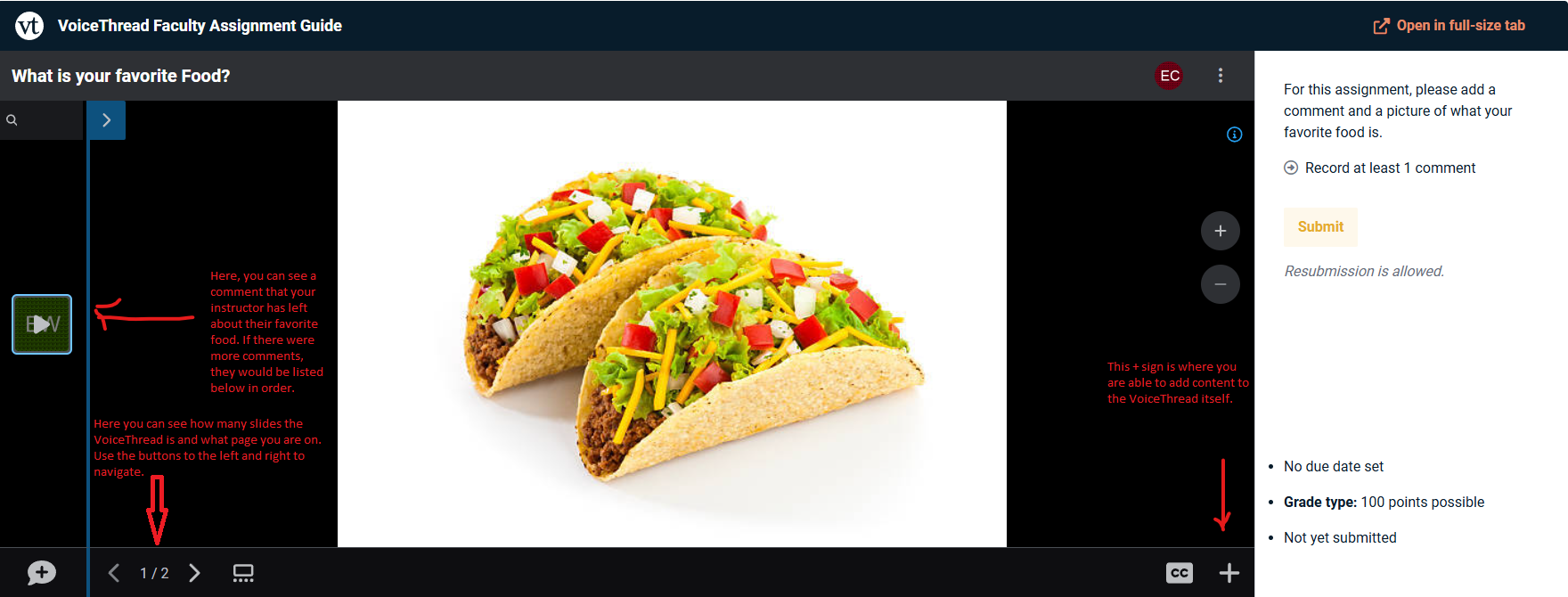
- On the next page you are going to see a number of different buttons that include how to navigate throughout the different pages of the VoiceThread, where comments are being recorded and how to add additional media to the VoiceThread. We will now navigate to page 2 to upload a picture of your favorite food and add a comment.
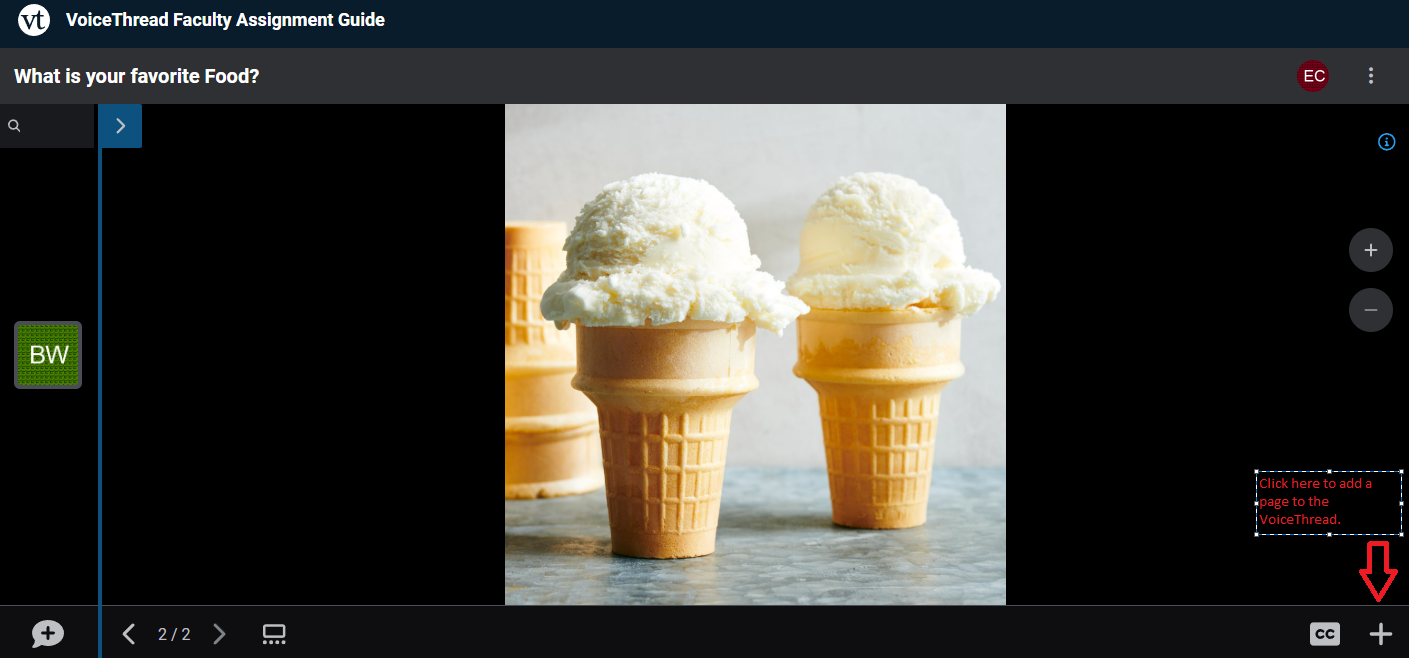
- Once on the second page, click the + sign on the bottom right corner to add media to the VoiceThread.
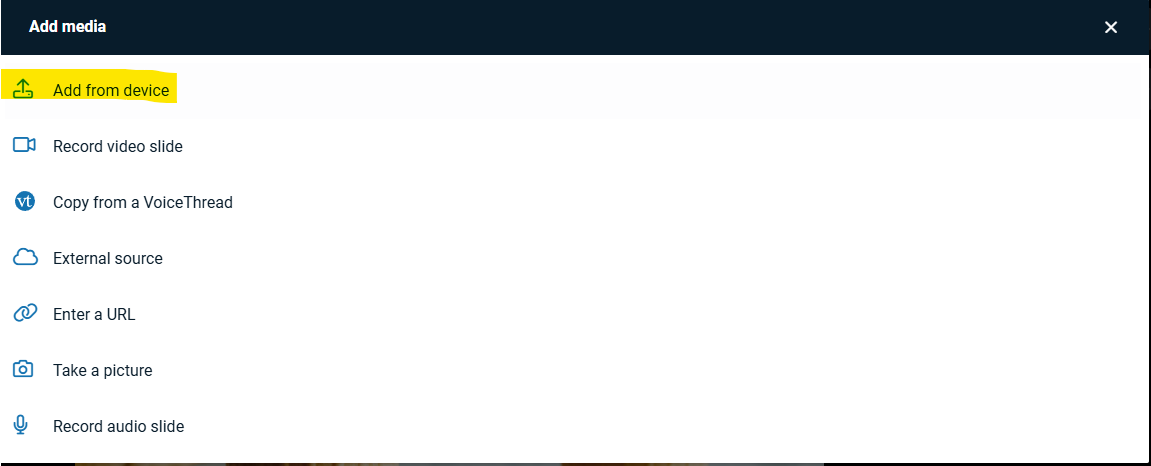
- From here you will be able to select from a number of different options on where to add your media from. Since the assignment wants a slide with your favorite food, select where you would like to get a picture of your favorite food from and add it. For this example, we are going to select add from device.
- Navigate to where the picture of your favorite food is and select it.

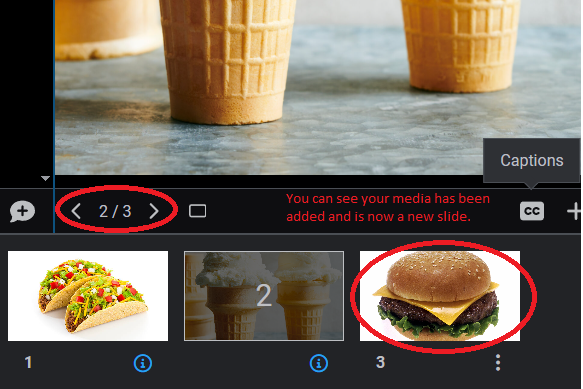
- You will then see the media you selected added to the VoiceThread as a new slide. Click on that slide and we will then add a comment.
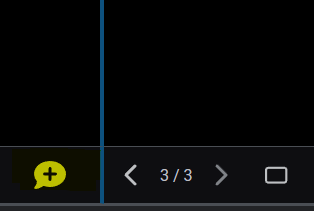
- To start adding a comment, click on the speech bubble with the plus sign on the bottom left corner.
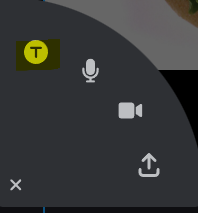
- From here, you will have 4 different comment options: text, audio recording, video recording and upload a comment. For this example, we will simply be adding a text comment.
- From here, type what you would like your comment to say and click the save button.

- Your comment will now appear on the left hand side with your initials and if you click on it you will be able to read what it says.

- If you look on the right hand side, you will see that you met the criteria for submitting your assignment. Hit the submit button.

- From here, all your instructor needs to do is grade and your score will appear in the grades category on Moodle.
